/PODS — FINDTRIBE MESH · LONG RANGE
Get a pod.
Reach farther.
A small pod pairs with your phone and talks to a friend’s pod directly. No internet, no cell service. Short messages, live locations and SOS. Three pods work with FindTribe. One is ready the moment it arrives. Two cost less and need one setup step on a computer first.
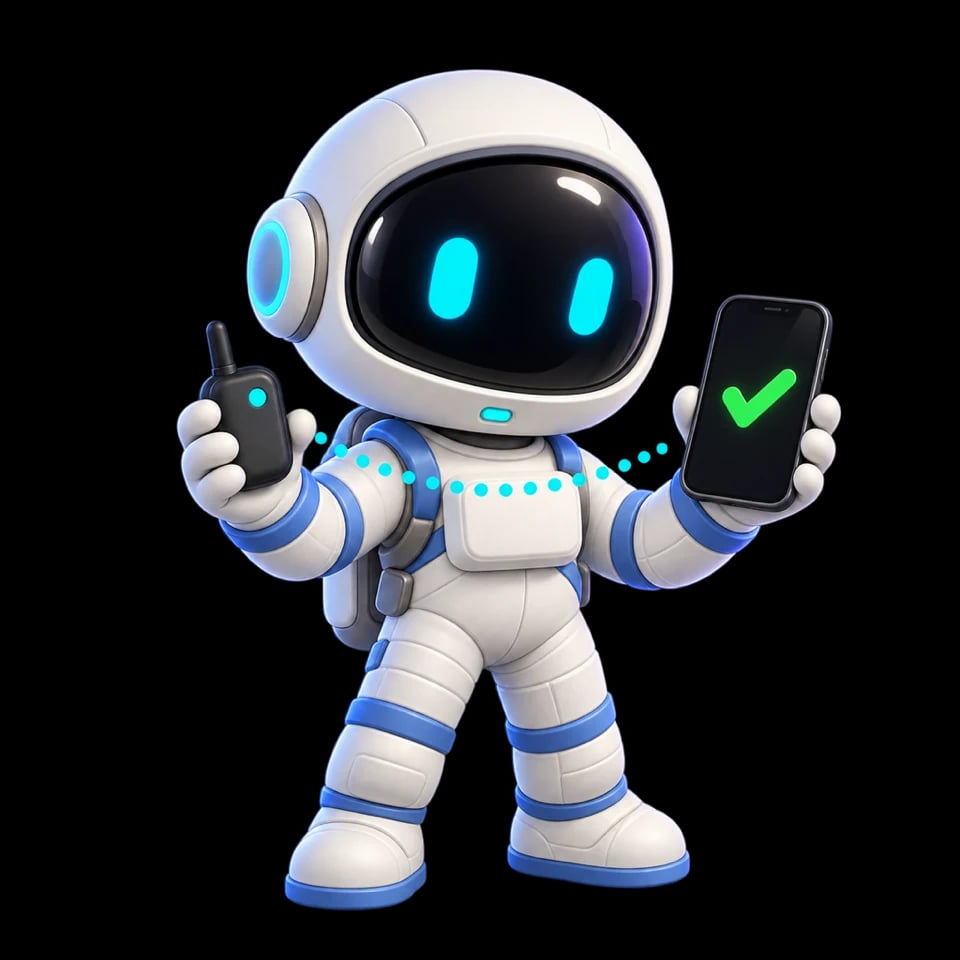
Three that work with FindTribe
Pick one.
Charge it. Pair it.
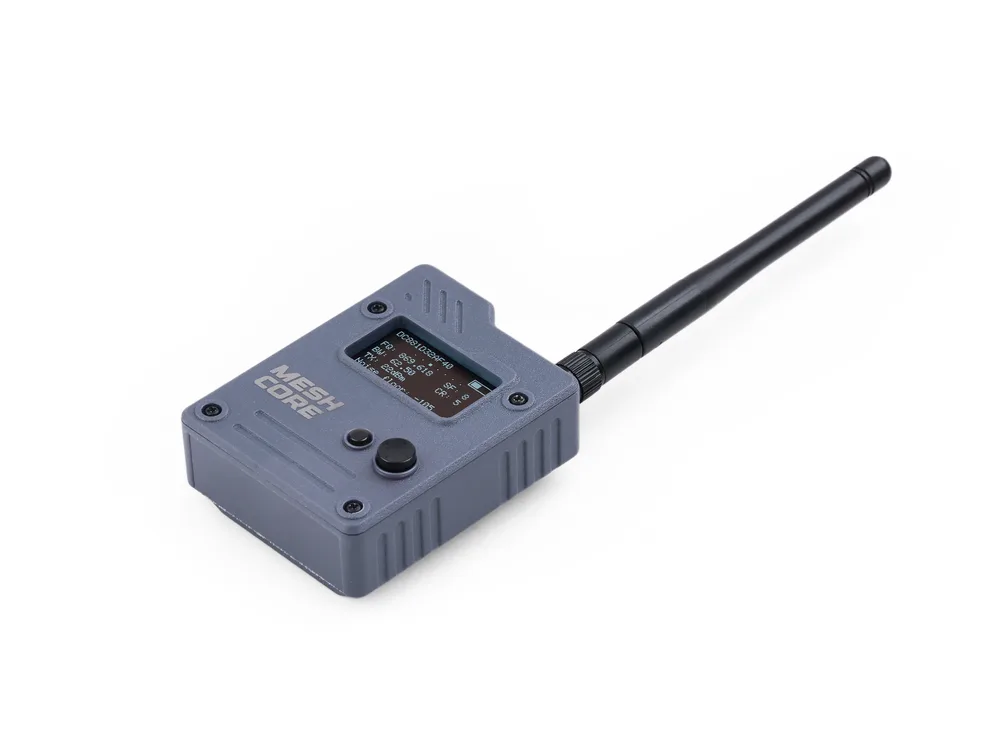 Easiest
Wio Tracker L1 Pro
Works the moment it arrives.
Charge it, open FindTribe, and it pairs. No computer step needed.
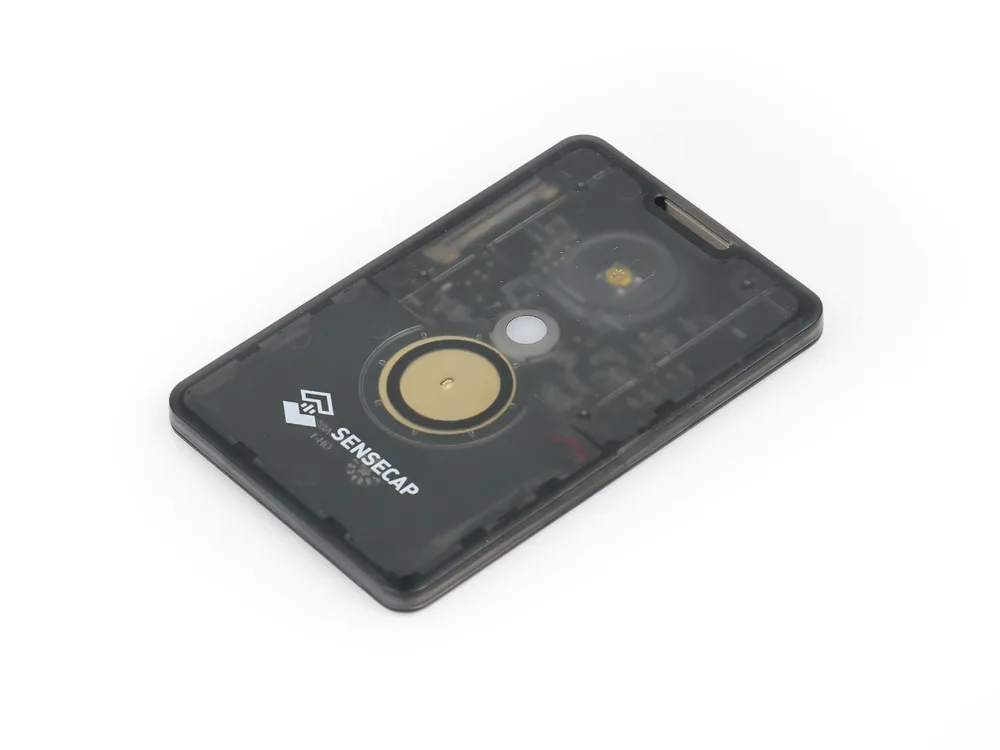
SenseCAP T1000-E
Costs less. One setup step on a computer.
Card-sized and weatherproof. About five minutes at a computer, once, before it can pair.
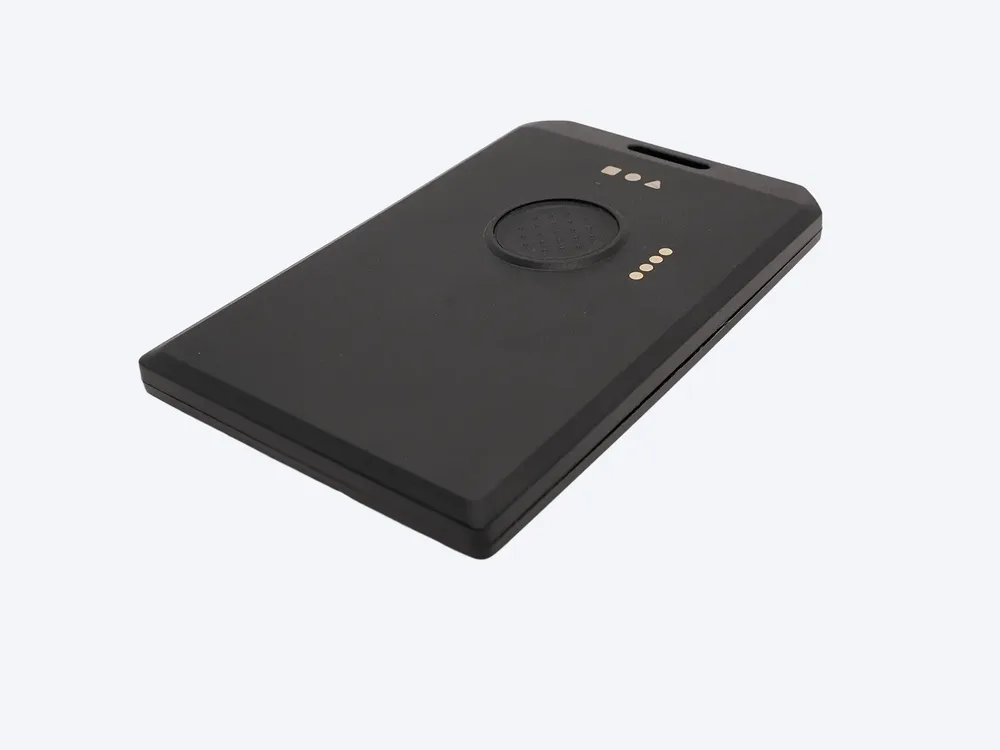
RAK WisMesh Tag
The smallest. One setup step on a computer.
Costs the least of the three, and weatherproof.
Prices are what they were when this was written. The store page has today’s. Product photos: Seeed Studio and RAKwireless.
What a pod does today
Short messages. SOS.
Your live location.
With no internet and no cell service, two pods trade these directly. Group chats and the boards are planned for long range.
A short text, pod to pod.
Sealed on your phone, carried by your pod, opened only by the friend it is for.
One press, one more path.
An SOS can use the internet, your pod, or nearby Bluetooth relays, whichever can reach. It alerts the people you chose, not emergency services.
Where you are, to your people.
Your live location travels the same way, so a friend can walk toward you with no signal at all.
Two pods. One link.
Phase 1 is pod to pod with no repeaters. Each phone pairs with its own pod. Repeaters come in phase 2 and extend the reach city by city.
Three words, never a number.
FindTribe tells you when the pod is full, getting low, or nearly empty, and asks you to charge it soon. Keep it charged the way you keep your phone charged.
Pair it
Open FindTribe.
Tap Find my pod.
Pairing happens in the app, on your phone, in under a minute. Keep the pod close and switched on.
- Charge the pod and switch it on.
Then open FindTribe and, on the You screen, tap the Long range row, then Find my pod.
- Let the phone look.
FindTribe checks your Bluetooth permission, then looks for your pod for a few seconds. The closest one is usually first.
- Enter the code if your phone asks.
Pods with a little screen show their own six-digit code. Pods without a screen use 123456. Your phone may suggest 0000 or 1234. Neither of those works here.
- Confirm the radio settings if asked.
If FindTribe says the pod is on different radio settings, tap Fix radio settings. This happens once, only when you confirm, and sets the pod to the settings your friends use.
- Long range is on.
FindTribe keeps the pod connected so messages can arrive while your screen is off.
The one-time setup step
Five minutes
at a computer.
The SenseCAP T1000-E and the RAK WisMesh Tag arrive with other software. You’ll put MeshCore, the system FindTribe uses for long range, on them once, on a Mac or Windows computer. A phone or tablet can’t complete it. After that, you’ll use the pod from FindTribe on your phone. The L1 Pro only needs this if FindTribe says its software needs an update.
- Mac or Windows computer
- Chrome or Edge
- About 5 minutes
- Your pod, charged
- Magnetic cable from the box
- 01Connect your pod
Clip the round magnetic cable from the box to the back of the pod, then plug it into your computer.
- 02Open the setup page
Open flasher.meshcore.co.uk in Chrome or Edge.
- 03Choose your pod
Find Seeed Studio SenseCAP T1000-E, then choose the version that connects to a phone with Bluetooth. Start the connection and, if your computer asks, choose the device whose name starts with nRF or TinyUSB.
- 04Install MeshCore
Follow the page from top to bottom. It installs MeshCore, the system FindTribe uses for long range. Let each part finish, and choose the same device again if asked.
- 05Finish in FindTribe
Keep the cable connected until the pod restarts. Then open FindTribe on your phone and tap Find my pod. After it pairs, if FindTribe says the settings differ, tap Fix radio settings and confirm.
Sometimes the page waits and then gives up. That almost always means something else is holding on to the pod. Do these three things, in order, then start the setup again.
- On every phone that has used this pod, turn Bluetooth off, or forget the pod in your phone’s Bluetooth settings. Only one thing can talk to it at a time.
- Pull the magnetic cable off the back of the pod and put it straight back, twice, quickly. A new drive appears on your computer when the pod is ready.
- Go back to the setup page and start it again.
When the setup is done, turn Bluetooth back on so FindTribe can find your pod again.
If something is off
Pod connects,
but nothing gets through?
The setup step is the fix.
If FindTribe tells you your pod’s software needs an update, or your messages don’t move even with a friend’s pod nearby, the setup step above puts fresh software on the pod you already have. About five minutes.
Same settings on both pods.
Phase 1 uses the MeshCore settings for the United States and Canada. If your pod is on different settings, FindTribe says so when it pairs and offers a one-time fix. Both pods need the same settings to hear each other.
Common questions